
What's new in Tally
August 24 – October 1, 2026
The last release was about the forces acting on your plan. This one is about two questions, one small and one large. The small one: what did the trip actually cost? Flights, dinners, the rental car, the gear — four categories, and no report that adds them up. Now a transaction keeps its one category and carries any tags you like, so “Hawaii 2026” gets a total of its own. The large one: should you move retirement money into a Roth? The new Roth Conversion report answers it from your own forecast — how much fits under the tax ceiling you choose each year, what each conversion costs, and the year the tax you save catches up with the tax you paid.
Tag anything that cuts across categories
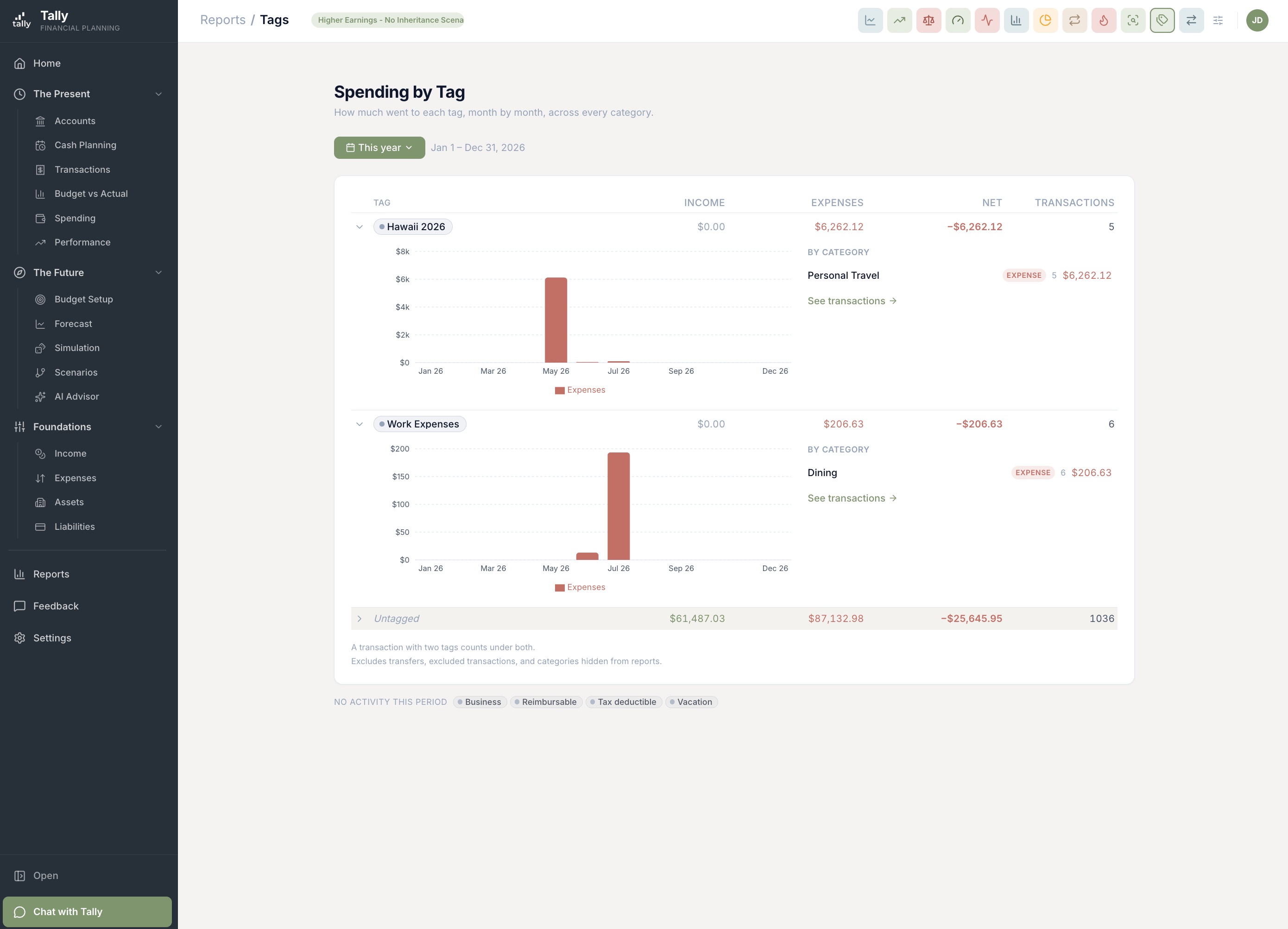
What did the Hawaii trip actually cost? The flights are under Travel, the dinners under Dining, the rental car under Gas, the snorkel gear under Shopping — and no category report will ever add them up. Now a transaction keeps its one category and can carry any number of tags. Tag everything from the trip “Hawaii 2026” and the answer is one report away. The same goes for a kitchen remodel, a side business, or the expenses you need to claim back from work.
- Tag from anywhere. Add tags in a transaction’s edit drawer, or select a batch on the Transactions page and tag them all at once. Type a name that doesn’t exist yet and Tally creates it on the spot. Every household starts with four — Reimbursable, Tax deductible, Vacation, and Business — and you can add your own with a color under Settings → Tags.
- A report built for the question. The new Spending by Tag report shows how much went to each tag over any date range, month by month, broken down by the categories inside it. Open any row to see the transactions behind it. An Untagged row shows what you haven’t filed yet.
- Filter the reports you already use. The Expense Report, Category Evaluator, Subscriptions, and P&L all take a tag filter now, so you can look at your usual reports through the lens of one trip or one project. Tag filters save with your saved searches and saved views.
- Let rules do the tagging. A rule can now add tags as one of its actions, so every charge from your business card lands tagged Business without you touching it.
- Or just ask. The Tally assistant can create tags, tag or untag a set of transactions with your approval, and answer “how much did the Hawaii trip cost?” directly.
Should you move retirement money into a Roth?
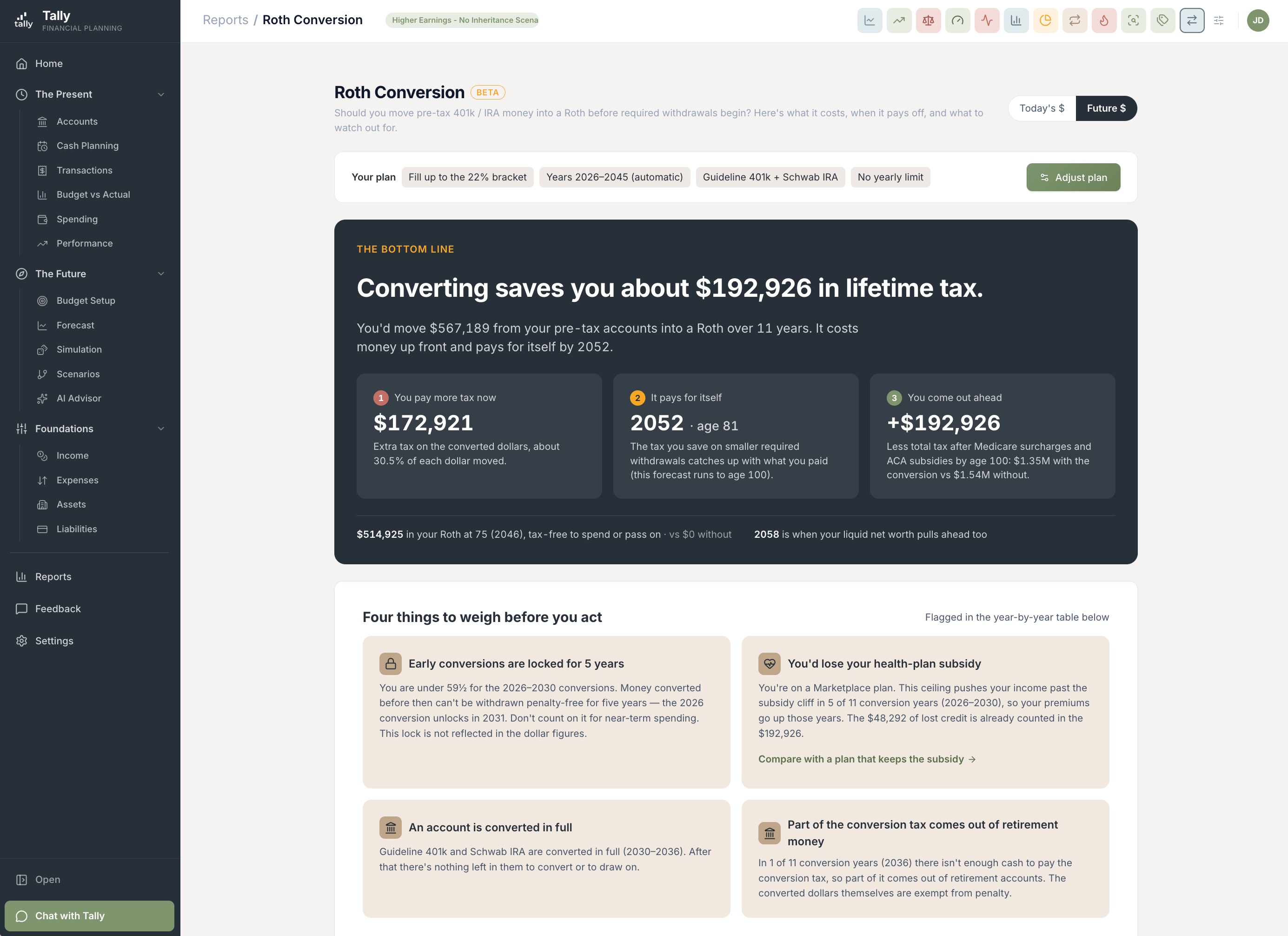
The years between retiring and your first required withdrawal are often the cheapest years you will ever have to move 401(k) or IRA money into a Roth. The question is how much, and whether it pays off. The new Roth Conversion report answers it from your own forecast: pick a tax ceiling, and Tally works out how much fits under it each year, what each conversion costs, and the year the tax you save catches up with the tax you paid. It’s in beta, and it leads with the answer.
- The bottom line first. One sentence — “Converting saves you about $X in lifetime tax” — then three tiles: what you pay now, the year it pays for itself and your age that year, and where you come out by the end of the forecast. Below that, how much sits in your Roth when required withdrawals begin, tax-free to spend or pass on.
- Your ceiling, your years, your accounts. Fill up to the top of the 12%, 22%, or 24% bracket, or set a custom cap on taxable income. Let Tally pick the years or choose them yourself, convert from all your pre-tax accounts or just some, and set a yearly limit if you want one.
- Keep your Marketplace subsidy. If you buy health insurance on the ACA Marketplace before Medicare, flag that expense as a Marketplace plan and your forecast prices the premium subsidy from then on. A “Keep ACA subsidy” ceiling then converts only as much as keeps you under the income line where the subsidy disappears, with a safety margin you set.
- Things to weigh before you act. Tally flags the catches on a card each: a conversion that would cross the subsidy cliff, money converted before 59½ that’s locked for five years, or conversion tax that has to come out of retirement money. The year-by-year ladder shows each year’s room, the conversion that fills it, and the cost broken into federal, state, and investment tax.
- Save it as a scenario. One click writes the ladder into a new scenario as planned transfers, so you can compare it against your baseline, run the simulation on it, and edit it on the Life Events page like any other plan.
The tax that comes out before the money reaches you
Your bank sees the deposit. It doesn’t see the federal tax, the insurance, or the 401(k) contribution that came out first. Now Tally does the arithmetic for you: the real deposits it saw this year, multiplied by the per-paycheck deductions you entered, give a running estimate of how much tax has been withheld from each paycheck and pension so far this year. Nothing is invented — the income still shows at exactly what landed — and every figure is labeled as an estimate.
- A strip on the Income page. “Estimated withheld this year” lists each income with its deposit count and a chip per deduction — federal withholding, insurance, 401(k) — showing what’s been withheld or contributed against what you planned. Collapse it when you don’t need it; it stays collapsed on every device.
- Every deposit, checked. The details drawer lays each deposit beside the take-home Tally expected. A deposit that lands more than a dollar off is flagged so you know withholding may have been different that time, with a note on what year-to-date would be if the whole gap were tax. When Tally needs a pay frequency or a gross figure to do the math, it says so in words rather than showing a zero.
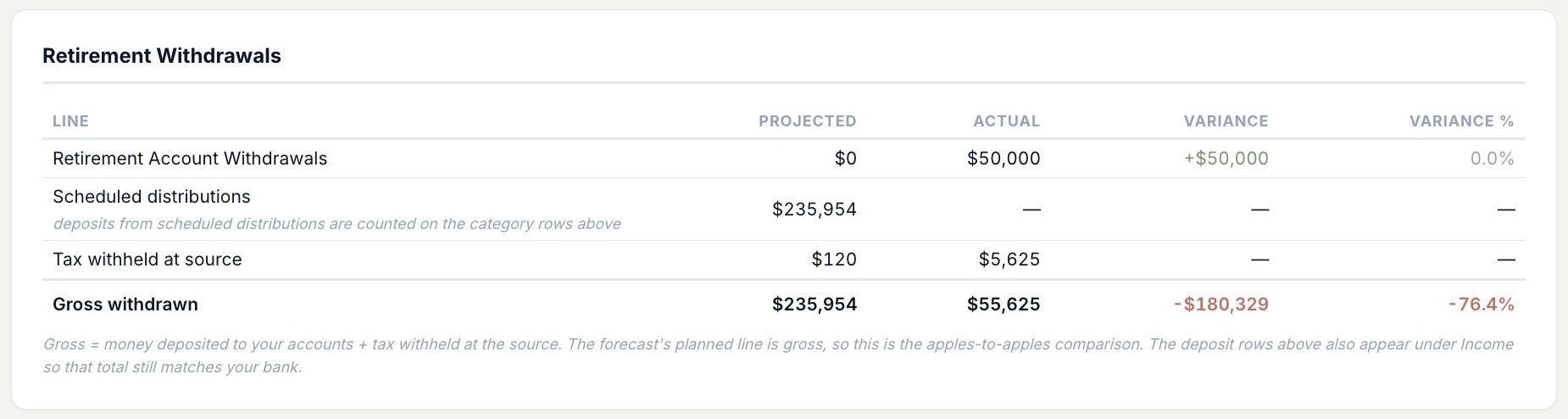
- Retirement withdrawals, gross. When your IRA custodian withholds tax, the deposit in checking is smaller than what left the IRA. A new built-in category, Tax Withheld from Retirement Withdrawals, lets you file that line, and a new Retirement Withdrawals card on the Year-End Comparison adds it back so your actual gross withdrawal lines up against the plan.
- Ask the assistant. “How much tax has come out of my pension this year?” and “how much did I really take out of my IRA?” both have answers now.
When your bank replaces a card, Tally tells you
A card expires, or gets lost, or the bank reissues it after a breach. To your bank, the new card is a brand-new account. Your connection stays green, but the account you track stops moving. Now Tally notices when a bank stops reporting an account you track and starts reporting a new one, flags it on the Connections page and in a banner, and walks you through linking the replacement to the account you already have — so years of history stay in one place instead of splitting in two.
- Reconnect & link new card. One button reopens your bank’s account picker. When the new card shows up, Tally suggests the account it looks like a replacement for and won’t let it default to “create new,” so you can’t accidentally fork your history. Once linked, the missing weeks fill in.
- Closed it on purpose? Say so. If the bank stopped reporting an account because you closed it, “Stop watching” clears the warning and keeps every balance and transaction. Tally then offers to mark it closed, which sets its balance to zero from today and leaves the past untouched.
- One email, not a nag. If a replaced or missing account sits for a couple of days, you get a single email saying which bank, which account, and what to click. It’s a new Bank Connection Alerts preference under Settings → Email Preferences.
- Connections, simplified. The Connections page is back to two clear doors — “Connect Bank Account” for banks and credit cards, “Connect Brokerage” for investment and retirement accounts — each using that provider’s own institution search. And when a bank reports accounts you’ve chosen not to track, the “new accounts” notice can now be dismissed for good.
Simulation and scenarios, telling one story
A plan’s odds of success now live in one place, and every view of them agrees. The Simulation page, the Scenarios comparison, and a saved snapshot all read from the same run, and the Flexible spending toggle now redraws the whole page — fan chart, worst-case card, survival curve, the plain-English sentence — rather than one number at the top.
- One run, both pictures. Each plan keeps a single stored simulation that holds the no-cuts result and the flexible-spending result side by side. Flip the toggle and the page switches instantly — nothing re-runs. The headline odds always show the no-cuts number, with a footnote saying what trimming discretionary spending in lean years would lift it to.
- Snapshots keep their odds. Save a snapshot of a plan and it now freezes the odds of success along with the net-worth line. Compare today’s plan against it and you see the live odds on the left, the frozen odds on the right, and the change between them. If the odds are out of date when you save, Tally offers to refresh them first.
- “Compared with” means compared with. The Odds of success panel on the Scenarios page now follows the same “Compared with” choice the chart above it uses — your baseline, another scenario, or a snapshot — with the plan you’re working on always in the left column.
- Events in the order this plan uses them. The Events column sorts by the dates in the scenario you’re viewing, and events nothing in the plan uses fold away under “N events not in this plan.” Scenario-created incomes, expenses, and debts now show their timing on the row — “Rent elsewhere start · Mar 2030 (Age 62)” — and hovering a year on the Forecast chart lists that year’s life events under the figures.
Sort any table, open any month
Two small things that change how reports feel to use.
- Click a header to sort. Every breakdown table now sorts by any column: Year-End Comparison, Year-End Outlook, Asset Performance, your investment positions, and the transaction lists inside Budget vs. Actuals and P&L. Numbers start largest first, names start A to Z, and a second click flips the order.
- Budget Pulse, one month at a time. In the Trend view, every month square is now a button. Click one and the category drawer opens for just that month — budget, actual, pace, and the transactions behind the number.
More improvements
Upgrades that didn’t need their own headline.
Saving a rule offers to apply it right away
Save a new or edited rule and Tally asks whether to run it over the transactions already on file, with a count: apply to all of them, or only the ones you haven’t reviewed yet. A rule that matches an amount “= 125” now catches a $125 deposit as well as a $125 charge.
Hide a built-in category you don’t use
Built-in categories like Required Minimum Distributions can now be hidden from your pickers under Settings → Categories. Tally restores one on its own if your forecast ever needs it.
Income Sources totals say which year they mean
Group totals now read “in 2026” and count only the months each income is actually paid this year, so a job that starts in December counts for December. Each row keeps its full-year rate alongside.
“Tracked since” on Asset Performance
An account that joined Tally partway through the period you picked now says so under its name, and its return is measured from the balance on the day tracking started. The detail drawer labels that figure “Balance when tracking started.”
Inflation data within a day of release
The Inflation Exposure report now checks for new government price data every day, so a fresh month shows up in your personal rate within about 24 hours instead of waiting for the end of the month.
Retirement accounts up where they belong
On the Accounts page, sections now follow a fixed order — cash, investments, retirement, property — so your retirement accounts sit with your other financial accounts instead of below the house and cars.
Red for spending, green for income
The Category Evaluator’s month-by-month bars are now red for an expense category and green for income, and a month where refunds outweigh spending shows green too.
Fixes
Small things that were off. Now they’re right.
- The Cash Planning master switch for a class of bills now acts on exactly the bills in the horizon you’re viewing — 30, 60, or 90 days.
- Long transaction descriptions now truncate so the note, receipt, subscription, and tag icons at the end of the row stay visible.
- The bulk-action bar on the Transactions page wraps on narrow screens instead of running off the edge.
- Asset Performance has a sort control on phones, where the column headers aren’t available.
- Deleting a rule, cancelling a subscription, and removing a deduction now confirm inside Tally instead of in a browser pop-up.
Tag your last trip
Sign in, open Transactions, filter to the dates you were away, select everything, and add a tag. Then open Reports → Spending by Tag and see what the trip really cost. It takes two minutes, and you’ll never wonder again.