
What's new in Tally
July 17 – July 28, 2026
The last few releases were about seeing your money clearly — where you stand today and where you’re headed. This one is about changing it on purpose. Scenarios was rebuilt around a single question: what does this decision actually do? Compare any two plans side by side, watch every edit report its effect on your net worth at the end of the plan, and save an outcome so you can measure your next idea against it. Underneath, the pages where you enter your income, spending, and what you own and owe are cleaner and faster, you can shape a budget from your own past spending, and you can now model moving to another state and watch the taxes follow you.
See what a decision does — before you make it
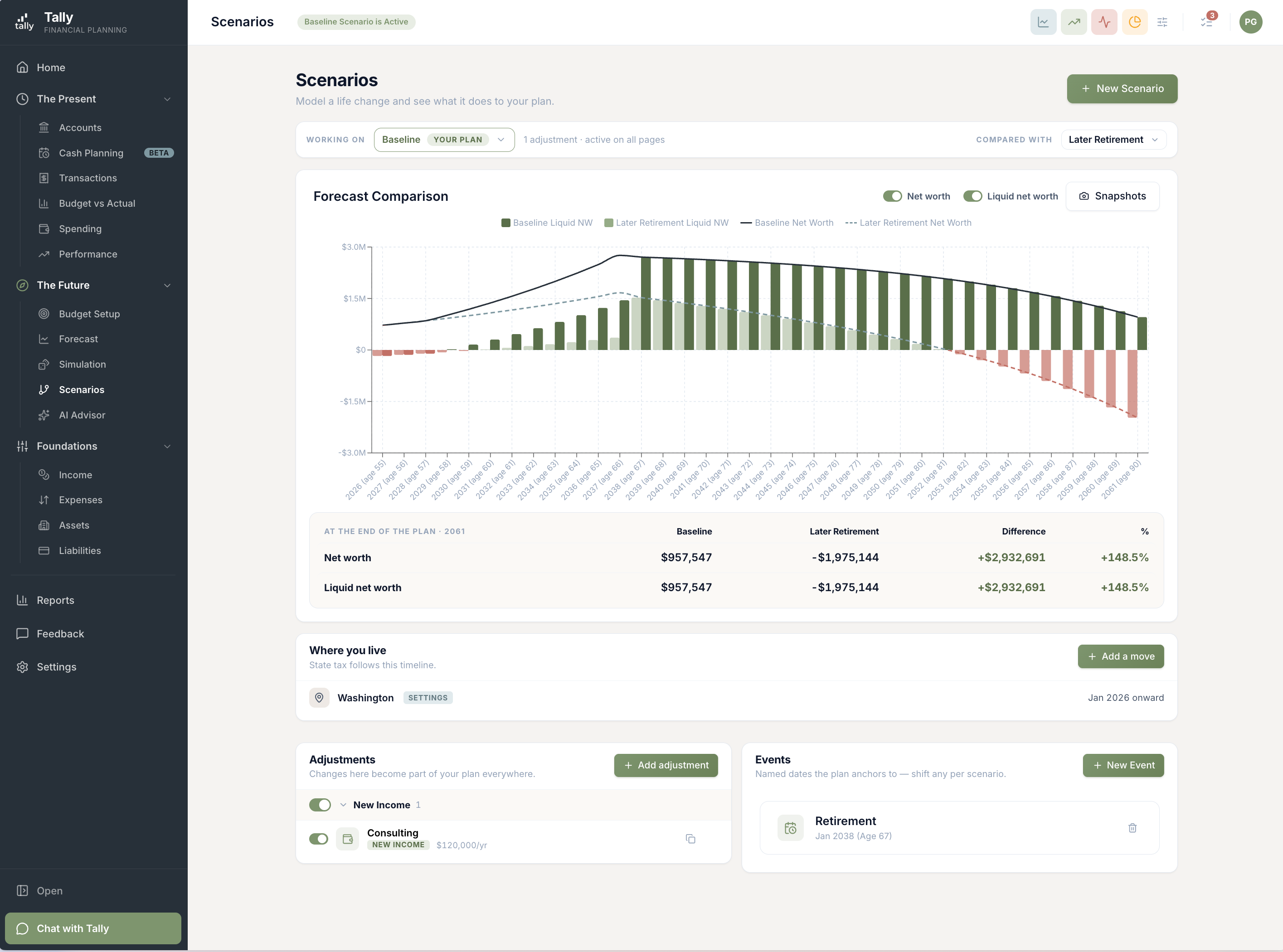
A scenario is a what-if: retire at 62, sell the cabin, move the kids’ college up a year. The question underneath every one is the same — does this leave me better off, and by how much? Scenarios was rebuilt to answer it out loud. Pick a plan to work on and a plan to compare it against, and the chart shows exactly those two, with a table beneath it reading your net worth and liquid net worth at the end of the plan for each — plus the difference, in dollars and percent.
- Compare against anything. A “Working on / Compared with” bar sits at the top. Line your scenario up against your Baseline plan, against another scenario, or against a saved snapshot — one clean head-to-head, never a tangle of overlaid lines.
- Every edit reports its effect. Change something in a scenario and a note appears above the chart: your net worth and liquid net worth at the end of the plan moved this much. No hunting the chart to tell whether the change actually helped.
- Save an outcome, compare later. Open Snapshots, name where you are — “Before I moved retirement to 62” — and keep tinkering. Later, compare against that snapshot to see exactly how far you’ve moved from it.
- Duplicate and branch. Copy a scenario in one click — every adjustment, income, asset, and move comes with it — and tweak the copy without disturbing the original you built it from.
- Show only what matters. Toggle the net-worth line or the liquid-net-worth bars on and off, and read the chart the way you want to.
Your income, spending, and net worth, laid out plainly
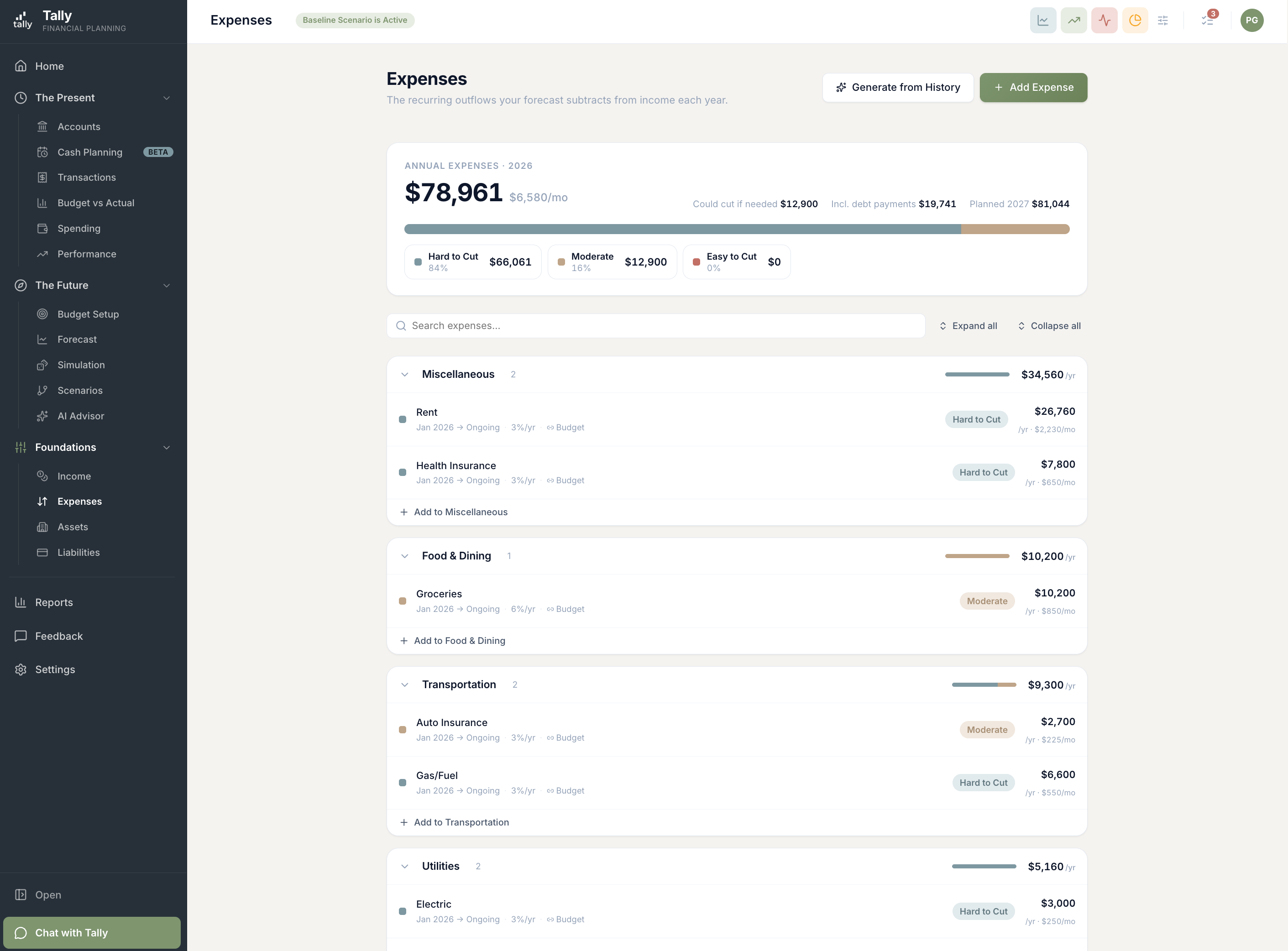
Foundations is where your plan starts — the income you earn, the money you spend, and everything you own and owe. Those four pages were rebuilt around one pattern: a single bar at the top that breaks the whole into its parts, a searchable, grouped list below it, and editing that slides in from the side instead of sending you off to a separate page.
- A mix you can see and slice. Each page opens with one stacked bar — your income by type, your assets by category, your debts by kind. Click a segment and the list filters to just that slice; click it again to clear.
- Spending, by how hard it is to cut. The Expenses page groups your spending into Hard to Cut, Moderate, and Easy to Cut, and totals what you could trim if you needed to — so “where’s the give in my budget” has an answer at a glance.
- Edit without losing your place. Click any row and its full editor slides in from the right. Categories, schedules, funding sources, deductions — it all happens in the drawer, and deeper edits open on top of it without dropping the changes you were making.
- Debt payments show up where you feel them. Your Expenses page now lists the payments on your loans in a group of their own, pulled straight from your Liabilities, so your real monthly outflow sits in one place.
Build a budget from your own spending
The hardest part of a budget is the first number. What should you put down for groceries, or gas, or the pets? You already have the answer — it’s in your transactions. Now Tally will fill it in for you.
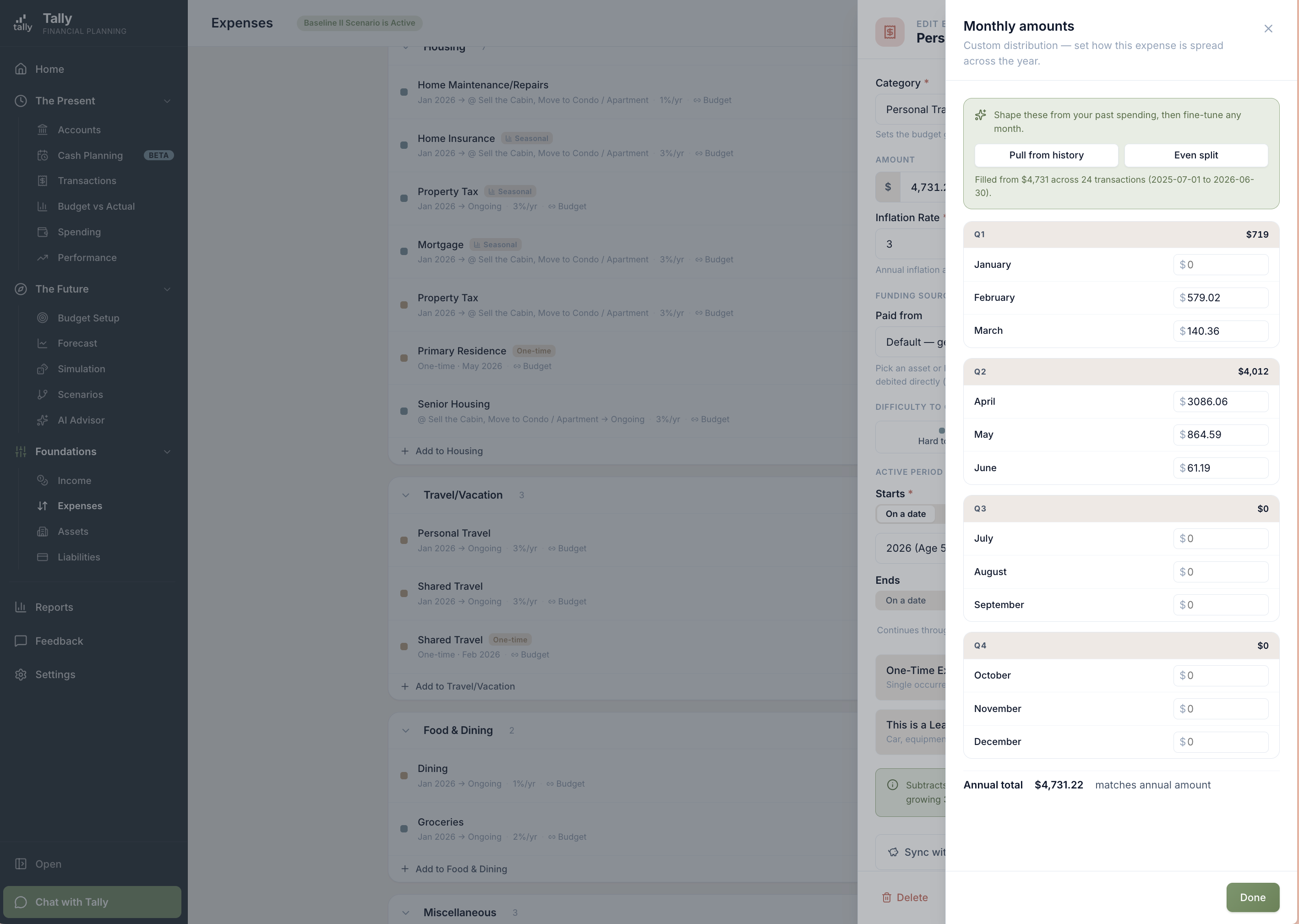
- Pull from history. On any expense tied to a category, open its monthly amounts and press “Pull from history.” Tally sets both the yearly total and the month-by-month shape from your real spending over the last twelve months — December heavier for gifts, summer heavier for travel — then lets you fine-tune any month. The same one-click fill lives on the Budget page.
- An expense can end in your favor. Some months a category nets to a credit — a refund, a reimbursement, the friends paying you back for the group dinner adding up to more than you actually spent. Tally now carries that surplus through honestly instead of flooring it at zero, so it lands back in your cash where it belongs.
Plan a move, and let the taxes follow
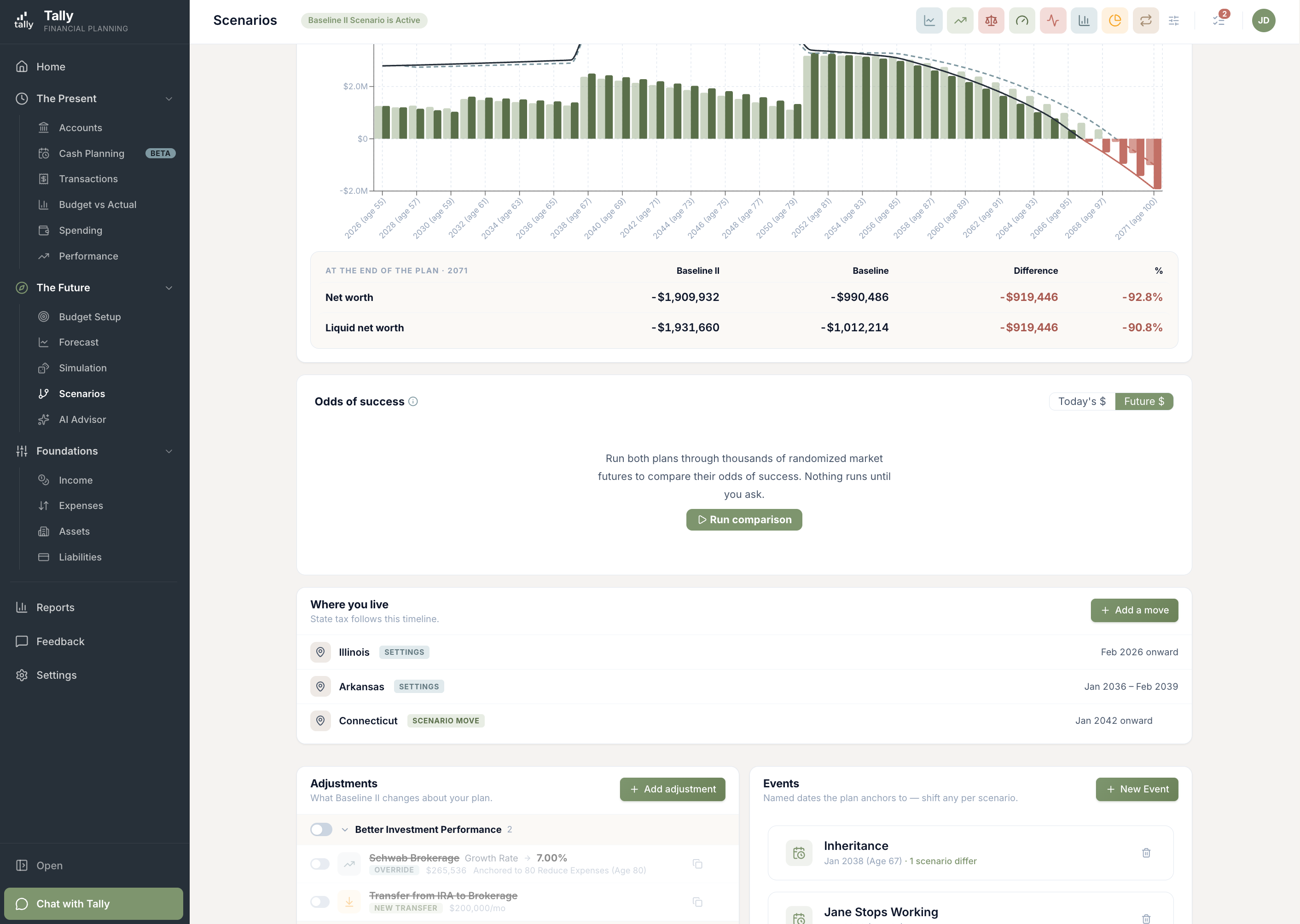
Where you live is one of the biggest levers on a long-range plan. A retirement in Texas or Florida keeps money that the same retirement in California or New York hands to the state. Tally can model that now — as a real plan or as a what-if.
- Set where you live, and when you’ll move. Your Profile keeps a history of the states you’ve lived in, and a planned move can be pinned to a life event instead of a fixed date — “move to Delaware when I retire.” Push retirement back a year and the move comes with it.
- Try a move inside a what-if. Any scenario has a “Where you live” panel where you can add a move that exists only in that plan, layered on top of your real history. Compare it against your Baseline and the difference in state tax, year over year, is right there.
Your forecast keeps up with the new tax law
Federal tax law changed this year, and the bill in your plan should reflect the rules you’ll actually be taxed under. Tally now models the latest changes across every forecast year.
- The new limit on state-and-local deductions. The raised cap — and the way it phases down at higher incomes and steps back in later years — is built into each year of your forecast, so what you can deduct tracks the law as it stands.
- The new deduction for filers 65 and older. Where it qualifies, the additional senior deduction is applied and fades out at higher incomes the way the law spells out — one less thing to reason about by hand.
Every receipt, something to look at
Last release, Tally started reading the receipts you forward in and splitting the charge across the right categories. Now every one of them comes with a picture. Forward an order confirmation and Tally saves a clean snapshot of the email itself — so even a plain-text confirmation that used to leave nothing to see now has a document behind it.
- See what you filed, wherever the charge is. A “View receipt” link now sits everywhere that transaction appears — the transaction itself, the Receipts inbox, and inside the split editor — so the document is one click away no matter where you land on it.
More improvements
Upgrades that didn’t need their own headline.
Newly linked accounts show their real balance
The Accounts page now opens on the year so far. Link an account partway through the month and its current balance shows right away — and anything with no history in your window is labeled plainly instead of reading as a fabricated zero.
Your bank's own wording, right under the description
For connected accounts, the raw name your bank sent now sits directly under a transaction’s description — handy when the cleaned-up merchant name isn’t quite enough to place a charge.
Ask the assistant to handle receipts
Chat can now list what’s in your receipts inbox, attach or detach a receipt, split one by line item, and clear out what you don’t want to keep — always showing you the change before it commits.
Drill into one category from the Expense Report
Expand a spending group to see the categories inside it, then click one to open its own trend, its comparison to the prior period, and its transactions.
Category drill-downs show every transaction
Open a category from Budget Pulse or the Scorecard and the list now runs the full date range instead of stopping at the newest fifty — with an honest note if a very busy category has more than it can show at once.
Clearing your transaction filters is one obvious click
The Clear filters action moved next to the Filtered badge and turned orange, so it reads as the way out of a filter instead of a gray hint beside it.
Fixes
Small things that were off. Now they’re right.
- Wide tables — Accounts, Performance, Cash Planning, Budget vs. Actual — stack into readable cards on a phone instead of running off the edge.
- Cash Planning now tells apart a day that dips below your comfort level from one that actually goes below zero, and colors each the right way.
- Long event names on the Forecast rail no longer push the age label onto a second line.
- Chart labels render at their true proportions on narrow screens instead of stretching sideways.
- The “replace your monthly amounts?” confirmation now opens on top of the drawer that raised it, instead of hiding behind it.
Open a scenario and change one thing
Sign in, open Scenarios, and pick the decision you keep wondering about — retiring a year earlier, selling the second home, moving states. Change it, watch the number at the end of the plan move, and save the outcome so you can measure your next idea against it.